Create a Task
Tasks are how work that does not belong in another module gets an owner and a date. Creating one takes a few seconds, and the task appears on the project board with its own reference.
Step By Step Guide
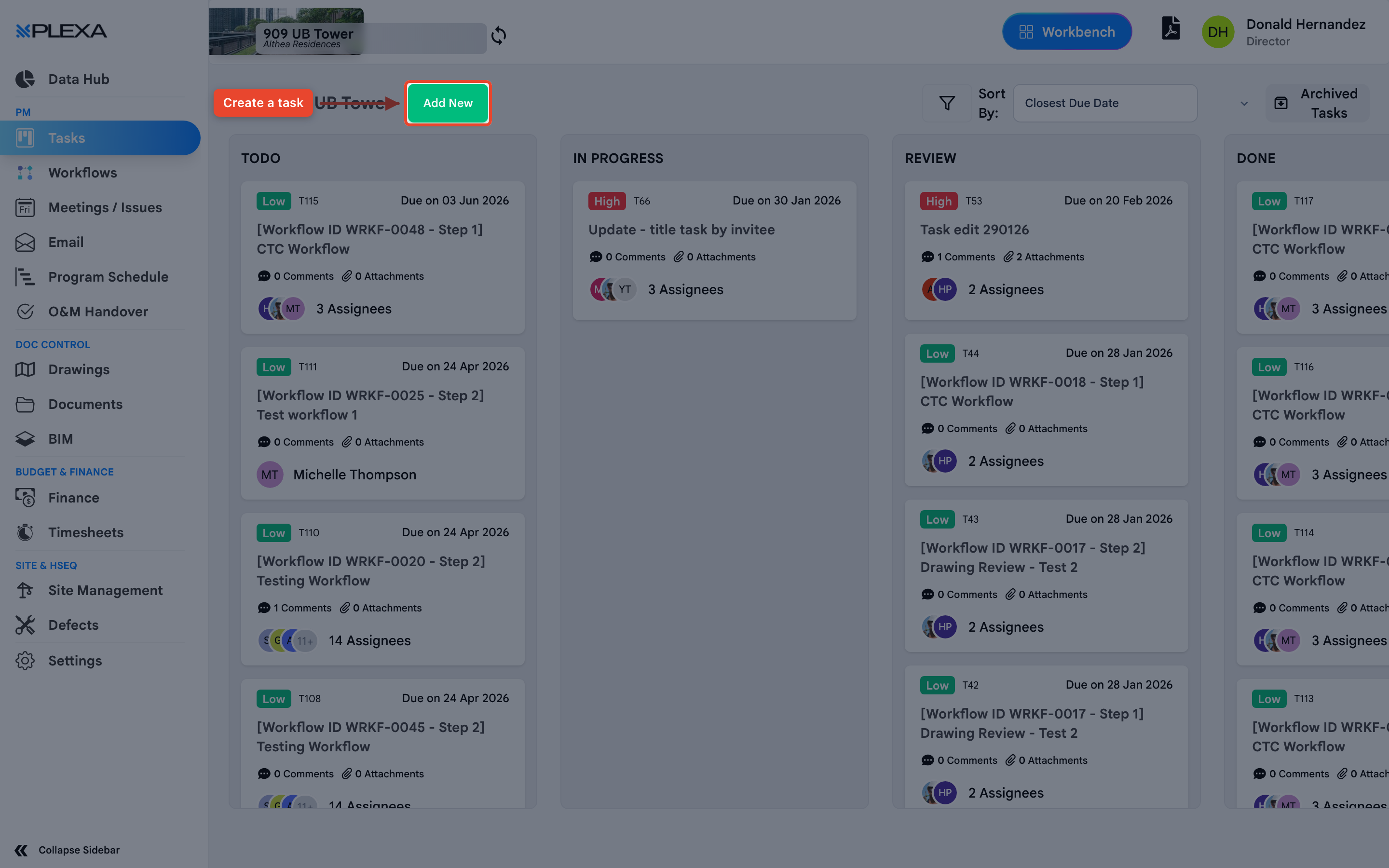
OPEN THE BOARD
Select "Tasks" in the Plexa sidebar, then select "Add New"
FILL IN THE TASK
- Enter a "Title" — this is what people see on the board
- Set a "Priority", or leave it at "Low"
- Use "Description" for the detail. It is a rich text field, so lists and links work
ASSIGN IT
Choose someone under "Assign To" and set a "Due Date". The date defaults to today, so change it deliberately
ATTACH ANYTHING RELEVANT
Drag files into "Attachments", or select "Use Documents" to link something already in the project rather than uploading a second copy
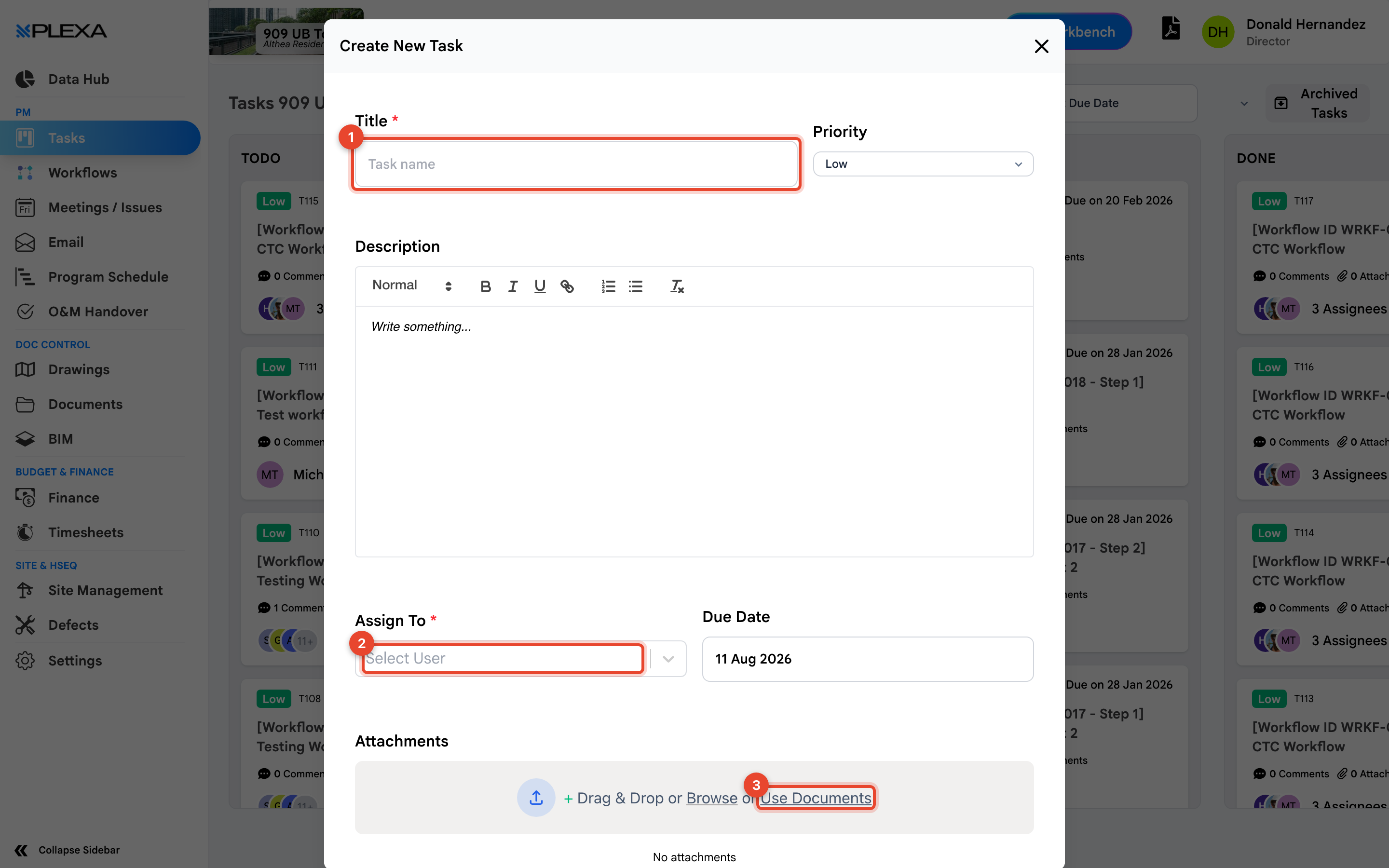
1 "Title" · 2 "Assign To" · 3 "Use Documents"
"Title" and "Assign To" are required. Everything else can be filled in later by editing the task.
Where the Task Goes
The board is arranged in columns by state, beginning at "TODO" and ending at "DONE". A new task starts in the first column and moves across as work progresses.
Notes & Recommendations
- Write the title as an instruction — Confirm crane permit for Level 3 reads better on a board than Crane
- Attach from "Use Documents" where you can. A linked document stays current; an uploaded copy does not
- If the work is really an approval, it probably belongs in a workflow rather than a standalone task
Need More Support?
For Individual requests related to using Plexa Tools, Contact PLEXA SUPPORT
Email: support@plexapro.com
Phone: 1300 117 140
We're here to help you get the most out of Plexa.