MFA for Administrators
Multi-factor authentication is configured once for your organisation, under "Settings" → "MFA Settings". Internal staff and external invited users are controlled separately.
The Settings Page
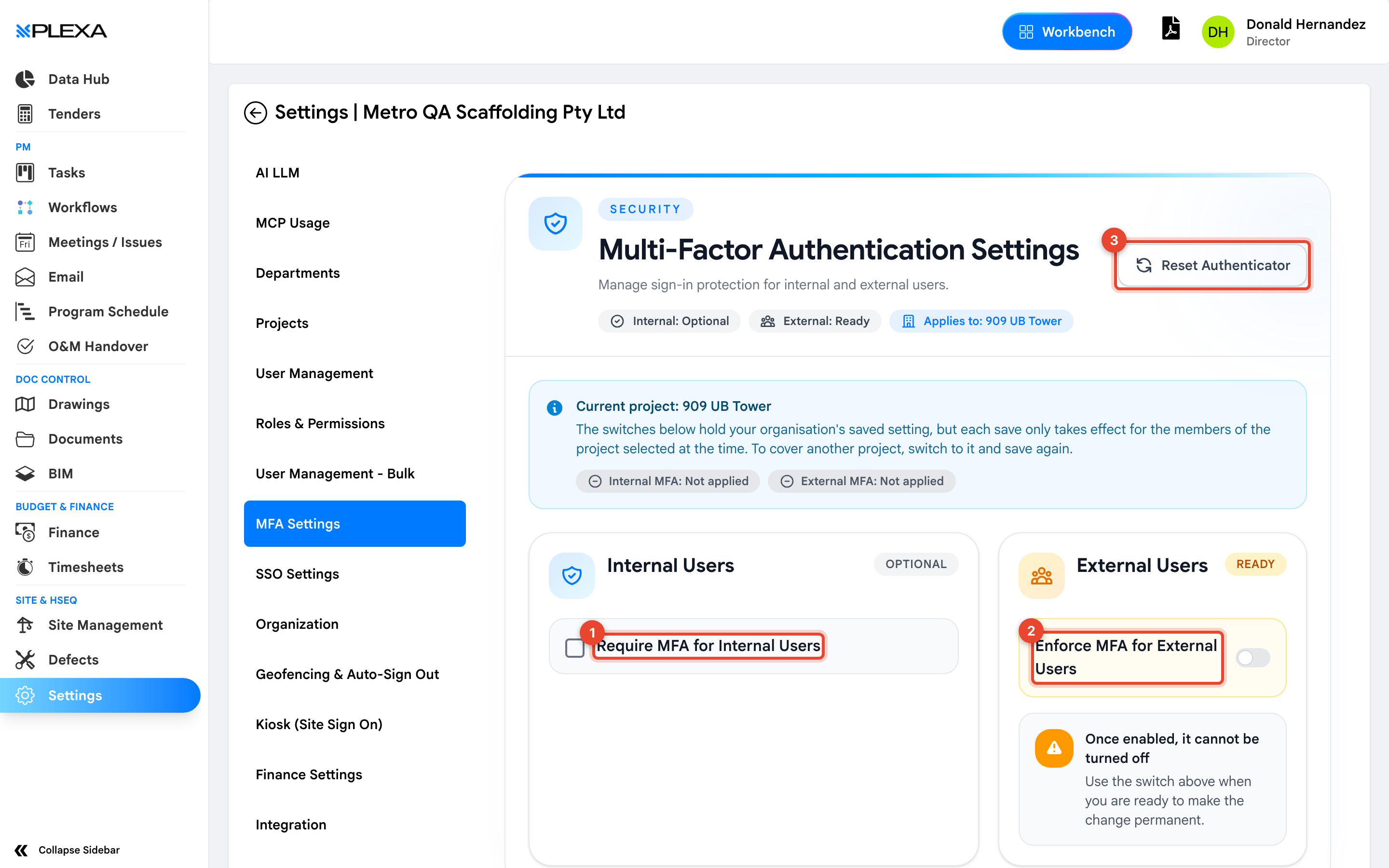
1 "Require MFA for Internal Users" · 2 "Enforce MFA for External Users" · 3 "Reset Authenticator"
- Internal Users — your own organisation's staff. Choose "SMS Only", "Authenticator App", or "SMS or Authenticator" to let each person decide
- External Users — invited subcontractors and other outside accounts
- Reset Authenticator — clears one user's enrolment by email address
The status line at the top reads "Internal: Optional" or "Internal: Required", alongside "Applies to" and whether MFA is currently applied — so you can confirm the present state before changing it.
Enforcing MFA for external users cannot be undone. The page says so plainly: once enabled, it cannot be turned off. Treat that switch as permanent.
Settings Apply Per Project
This is the part that catches people out. The switches hold your organisation's saved setting, but each save only takes effect for members of the project selected at the time. To cover another project, switch to it and save again.
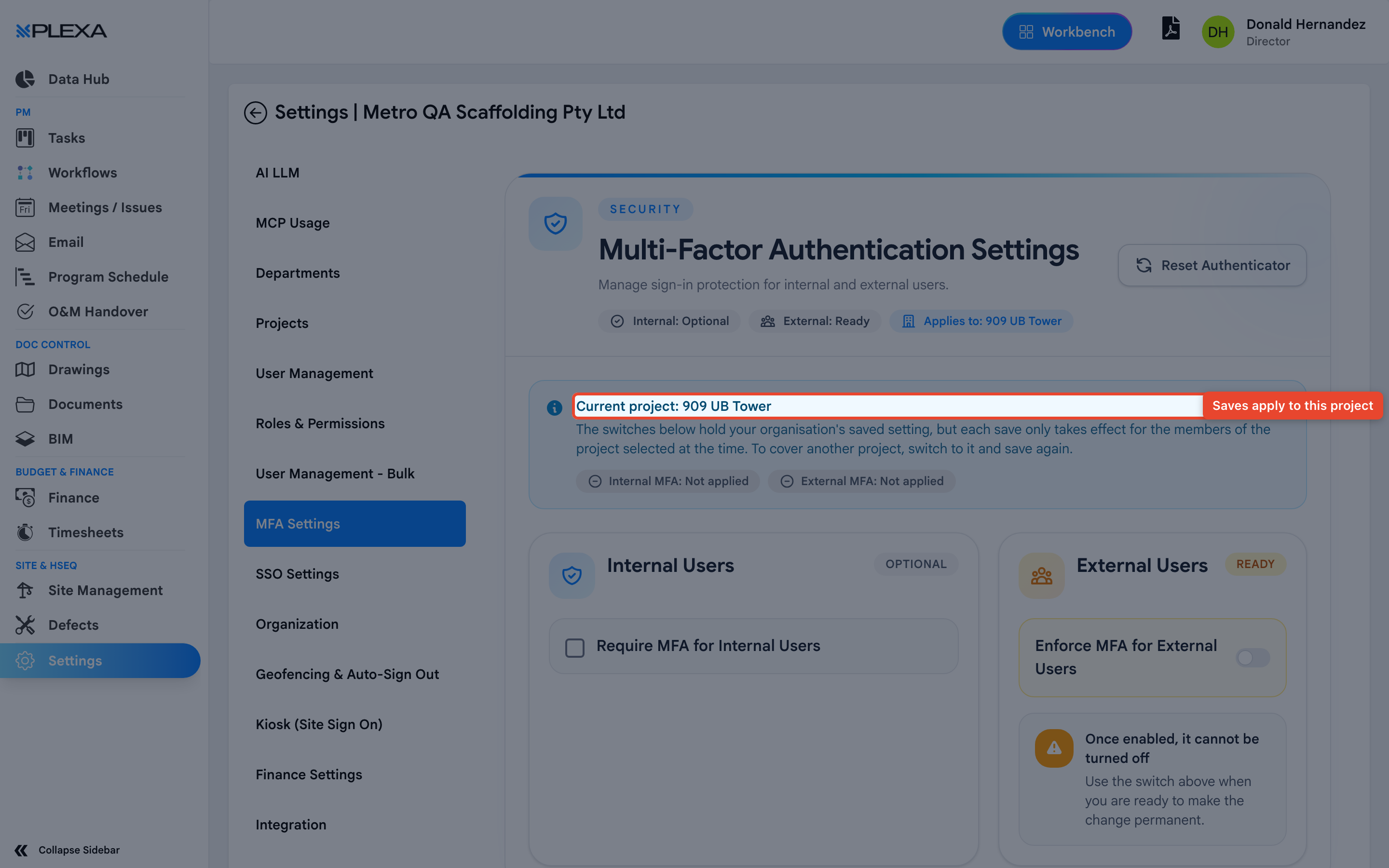
1 "Current project" — the project this save will apply to
Check "Current project" before saving. Turning MFA on while the wrong project is selected enrols the wrong group of people and leaves the group you meant unprotected.
Rolling It Out
CHOOSE A METHOD
"Authenticator App" is the most reliable on site, since it needs no signal. "SMS Only" is easier for people without a work phone app. "SMS or Authenticator" lets each person choose
TELL PEOPLE FIRST
They will be asked to enrol at their next sign-in and will need their phone. An unannounced rollout at 6am on a Monday generates support calls
ENABLE PROJECT BY PROJECT
Select the project, confirm the status line, then save. Repeat for each project you want covered
When Someone Is Locked Out
Users who still have their recovery codes can sign in with one and re-enrol themselves. If both the device and the codes are gone, use "Reset Authenticator" and enter the user's email address. Their enrolment is cleared and they set it up again at their next sign-in.
Notes & Recommendations
- Confirm "Current project" every time. The setting is organisation-wide but the save is project-scoped, and the two are easy to conflate
- Leave External Users alone until you are certain. It is the one switch on this page you cannot walk back
- Keep at least two Admins. Resetting a locked-out user needs an Admin who is not locked out
Need More Support?
For Individual requests related to using Plexa Tools, Contact PLEXA SUPPORT
Email: support@plexapro.com
Phone: 1300 117 140
We're here to help you get the most out of Plexa.