User Management
User Management is where people are given a Plexa account, assigned a role, and attached to the projects they work on. It is the first place to look when someone cannot see what they expect.
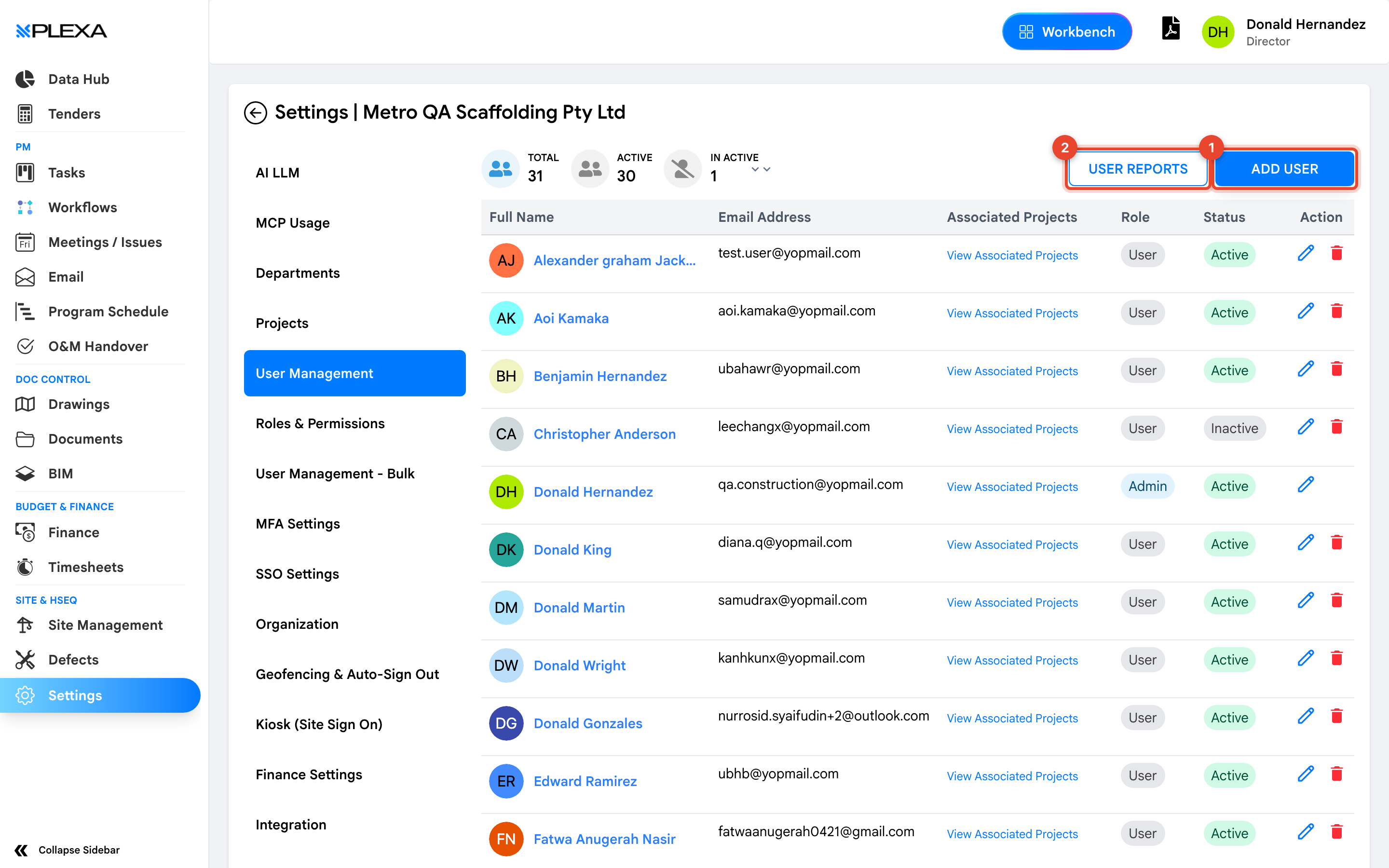
1 "Add User" · 2 "User Reports"
Reading the List
Counts across the top show "Total", "Active" and "In Active". Each row carries:
- Full Name and Email Address — the address is the person's sign-in
- Associated Projects — select "View Associated Projects" to see which projects they can reach
- Role — what they can do, defined under Roles & Permissions
- Status — Active or Inactive
Access is the combination of a role and a project. Someone with the right role who is not attached to the project still sees nothing — check both before changing permissions.
Adding Someone
Select "Add User" and enter their details. They receive an email invitation and set their own password; you never type it for them. Until they accept the invitation they cannot sign in.
Deactivating Rather Than Deleting
Setting someone Inactive stops them signing in while leaving their history intact — the correspondence they sent, the defects they raised, the diary entries they wrote all stay attributed. That is what you want when a person leaves.
Notes & Recommendations
- When someone reports missing modules, check Role first, then Associated Projects. It is almost always one of the two
- "User Reports" exports the list for access reviews
- Deactivate on the day someone leaves. An active account with project access is the loose end that audits find
Need More Support?
For Individual requests related to using Plexa Tools, Contact PLEXA SUPPORT
Email: support@plexapro.com
Phone: 1300 117 140
We're here to help you get the most out of Plexa.