Set Up Your Profile
Your Plexa profile carries the name, position and contact details that other people see on your correspondence and records. Setting it up early is worth the two minutes, because your details appear on everything you raise.
Step By Step Guide
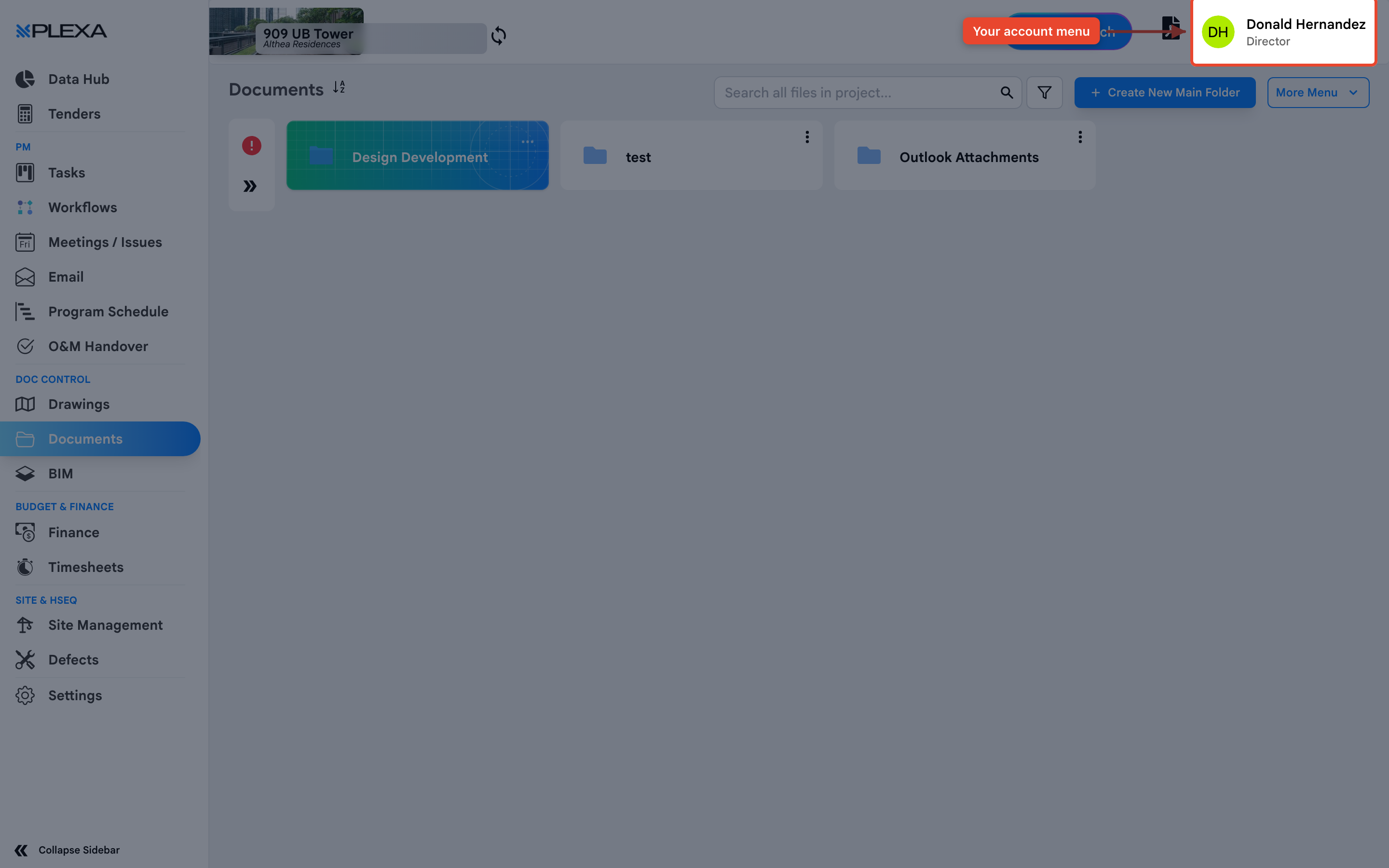
Select your name in the top right, then choose "Profile"
The "Account" tab opens, holding your personal details
Select "Upload New Photo" so your entries are easy to recognise
Complete your details — "First Name", "Last Name", "Position", "Phone", "City" and "Country"
Select "Save Profile"
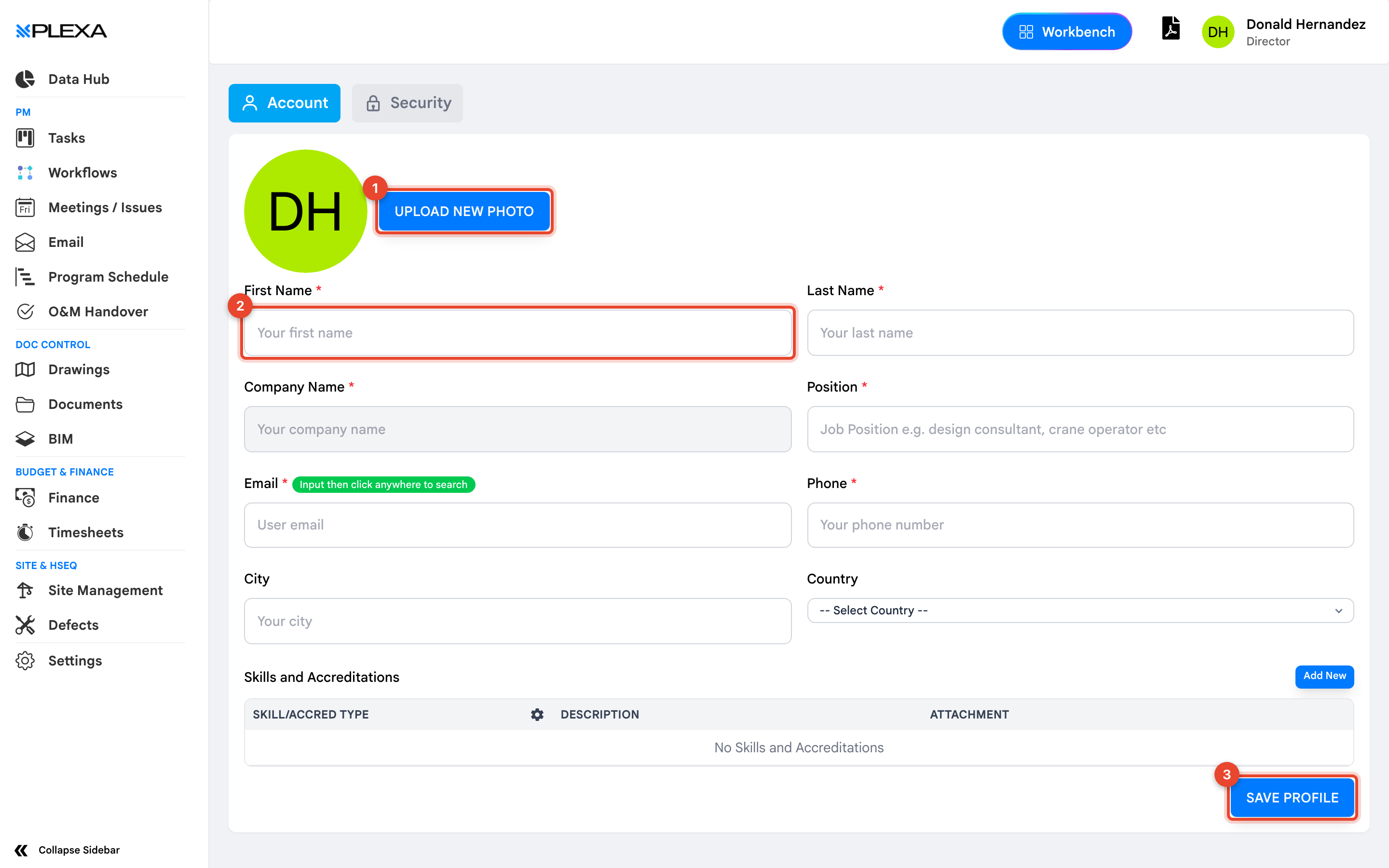
1 "Upload New Photo" · 2 "First Name" · 3 "Save Profile"
Fields marked with a red asterisk are required. Your name and position appear on correspondence, site diary entries and approvals — keep them accurate.
Change Your Password
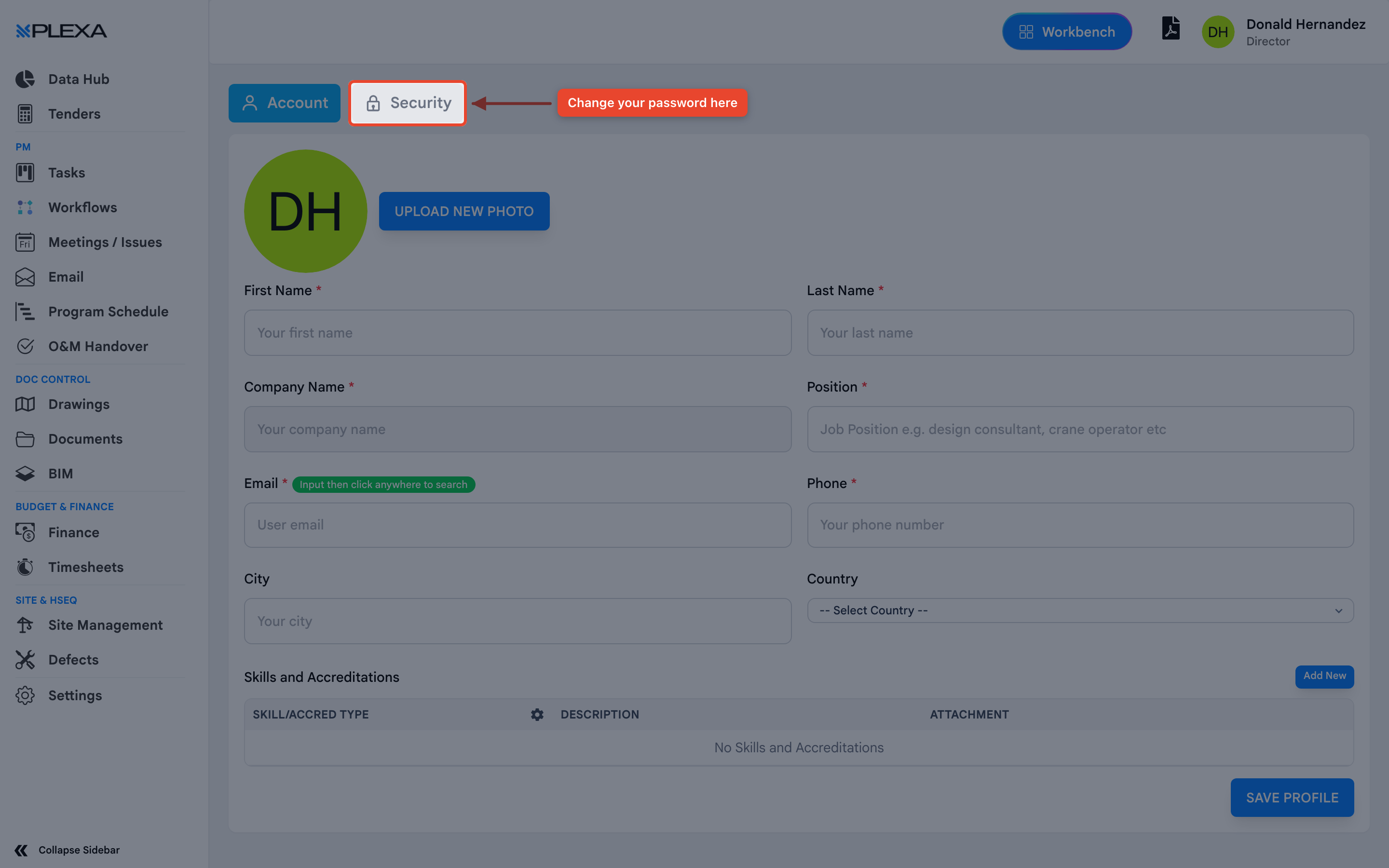
Your profile has two tabs. "Account" holds your details; "Security" is where you change your password.
Skills and Accreditations
Below your details is a "Skills and Accreditations" table. Select "Add New" to record a qualification and attach the certificate. On projects that check competencies before granting site access, this is where that evidence is read from.
Notes & Recommendations
- Your "Company Name" is set by your organisation and cannot be edited here
- Your email address is your sign-in and cannot be changed on this page. Ask a Plexa Admin if it needs updating
- Select "Save Profile" before leaving the page — moving between tabs does not save your changes
Need More Support?
For Individual requests related to using Plexa Tools, Contact PLEXA SUPPORT
Email: support@plexapro.com
Phone: 1300 117 140
We're here to help you get the most out of Plexa.