Defects
Defects tracks items of incomplete or defective work from the moment they are raised to sign-off. Each defect carries a location, a trade, photos and a status, so responsibility is clear and close-out can be evidenced rather than argued.
Step By Step Guide
Select "Defects" in the Plexa sidebar
Select "Create Defect"
Record the "Location", "Defect Type" and "Trade", and describe the defect
Attach photographs, then save
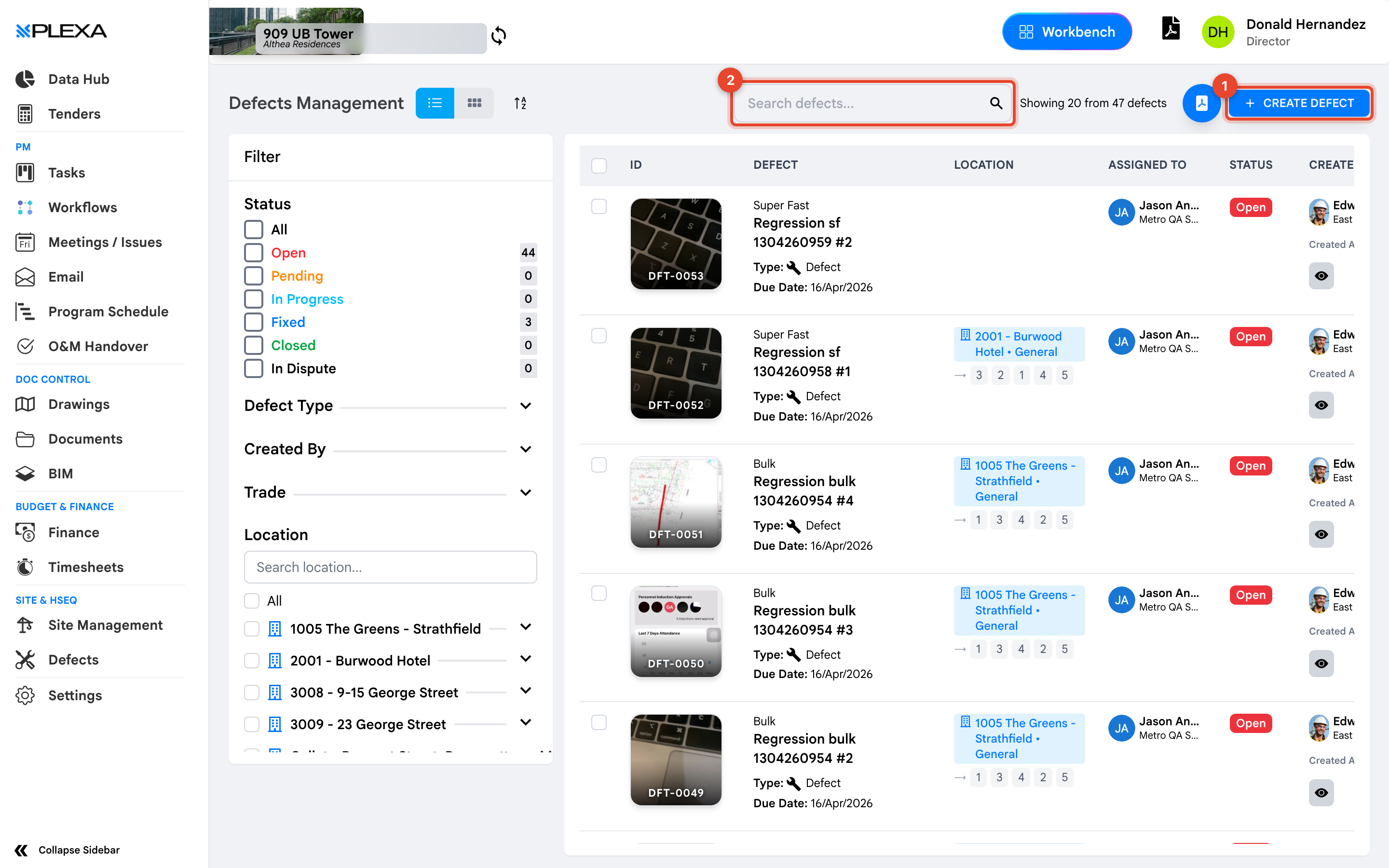
1 "Create Defect" · 2 "Search defects"
Photographs are what make a defect easy to resolve. A description alone often sends someone back to site to work out what was meant.
For the full form field by field, see Create a Defect.
Defect Statuses
The register groups defects by status, each showing a count:
- Open — raised, not yet started
- Pending — awaiting a response
- In Progress — being rectified
- Fixed — rectified, awaiting verification
- Closed — verified and signed off
- In Dispute — responsibility or scope is contested
Selecting a status filters the register to those defects.
Finding Defects
Use "Search defects" for words in the description, or filter by "Defect Type", "Created By", "Trade" or "Location". Location covers buildings, levels and areas, which is usually the quickest way to prepare a list before walking a floor.
Notes & Recommendations
- Fixed is not Closed. Someone still has to verify the work before a defect closes
- Filter by "Trade" to produce a subcontractor's outstanding list before a site walk
- The register shows a page at a time — check the count above the table before assuming you are seeing everything
Need More Support?
For Individual requests related to using Plexa Tools, Contact PLEXA SUPPORT
Email: support@plexapro.com
Phone: 1300 117 140
We're here to help you get the most out of Plexa.