Finance
Finance holds the money side of the project — supplier invoices, progress claims, variations and subcontracts — with approval workflows so costs are reviewed before they are paid. It opens on a summary of where the project stands financially.
Reading the Summary
Down the left are running totals: "Last Invoice Paid", "Total Paid To Date", "Total Remaining", "Costs In Review", "Total Variations to Date" and "Total Subcontract Value To Date". Each compares against the prior month.
Across the top, "Invoices Due", "Review Required", "Total Outstanding" and "Recent Approvals" show what needs attention now.
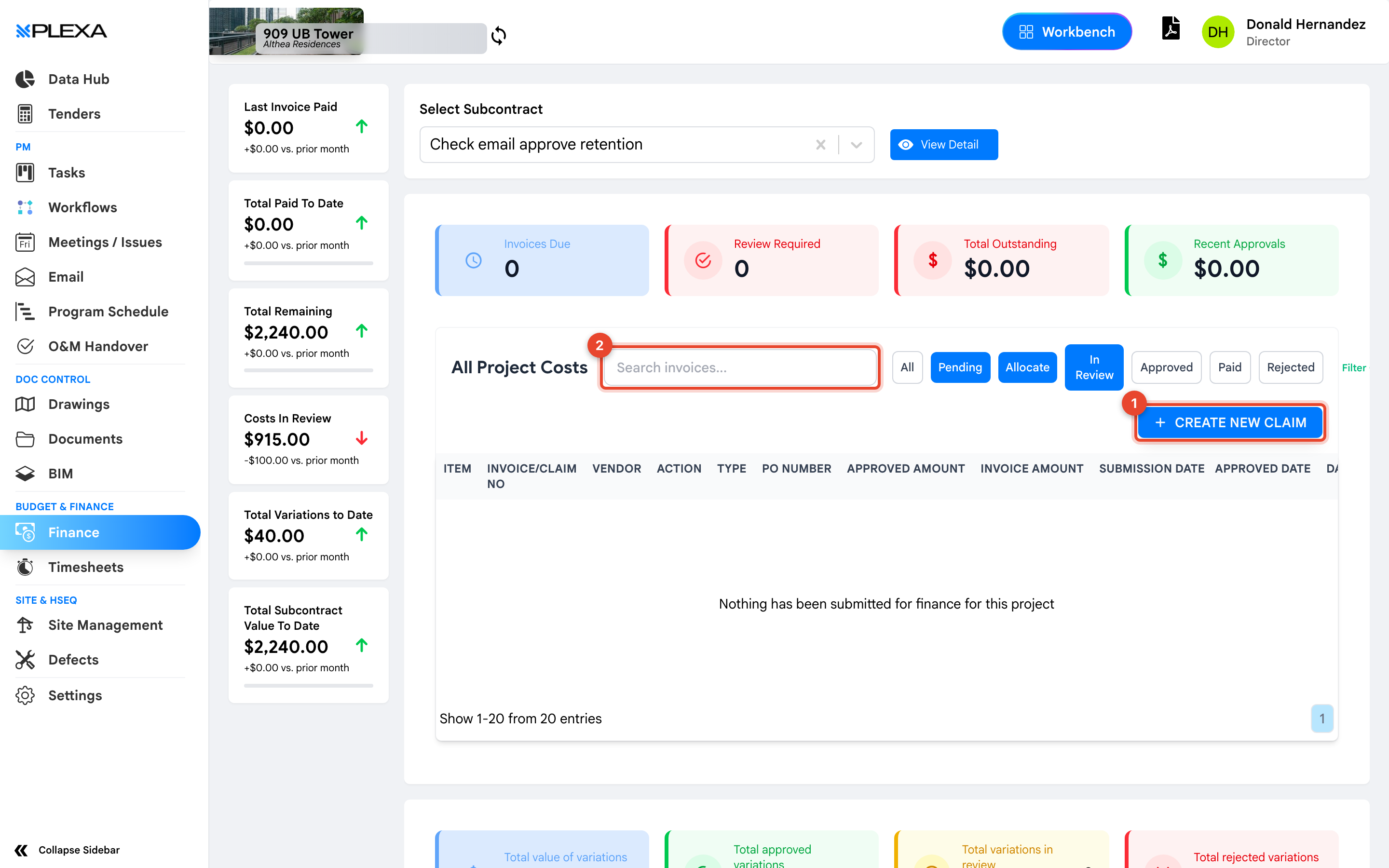
1 "Create New Claim" · 2 "Search invoices"
All Project Costs
The main register lists every cost against the project, filtered by status — "All", "Pending", "Allocate", "In Review", "Approved", "Paid" and "Rejected".
Columns cover the item, invoice or claim number, vendor, type, PO number, approved and invoice amounts, and the submission and approval dates.
"Costs In Review" is the number worth watching. It is money committed but not yet approved, and it moves before "Total Paid" does.
Claims and Variations
Select "Create New Claim" to raise a progress claim against a subcontract. Below the costs register, "All Variations" tracks variations separately with their own totals — value, approved, in review and rejected.
Use "Select Subcontract" at the top to narrow everything to a single subcontractor, then "View Detail" for their full position.
Finance Looks Different for Subcontractors
Finance is the module where your account type changes the screen the most.
- Project team members see the full Finance menu — purchase orders, subcontracts, direct costs, invoices, RCTI and head contract
- Invited subcontractors see a narrower view built around their own subcontract: the cost register, their claims and their variations
The screenshot above is the subcontractor view. If your Finance looks smaller than a colleague's, this is usually why, and it is not a fault.
Some Finance menu labels do not describe what they open — on projects that show the full menu, purchase orders sit under "Suppliers" and subcontracts under "Commitments". Ask your Plexa Admin if you cannot find something you expect.
Notes & Recommendations
- Finance access is granted separately from the rest of Plexa. Not seeing the module means your role does not include it
- On a project where Finance has not been set up yet, Plexa opens a setup screen instead of this dashboard — that is expected, not a fault
- Select a subcontract at the top before raising a claim — the claim and variation screens work against the selected subcontract
- "Import via Excel" exists for bulk entry, but check the template carefully before a large import
Need More Support?
For Individual requests related to using Plexa Tools, Contact PLEXA SUPPORT
Email: support@plexapro.com
Phone: 1300 117 140
We're here to help you get the most out of Plexa.