Sign into Plexa
Plexa gives you secure access to your projects, correspondence, documents and site records from any browser. This guide covers signing in for the first time, using your Microsoft account, and what to do when a password no longer works.
Step By Step Guide
Navigate to the Plexa Sign in page
Enter your registered Plexa "Email address"
Enter your "Password", then select "Sign in"

1 "Email address" · 2 "Password" · 3 "Sign in"
New Users must accept their email invitation from a Plexa Admin before creating a password and signing in.
Sign in with Microsoft
If your organisation uses Microsoft 365, you can sign in with your work account instead of a separate Plexa password. Select "Sign in with Microsoft" and complete the prompt from your organisation.
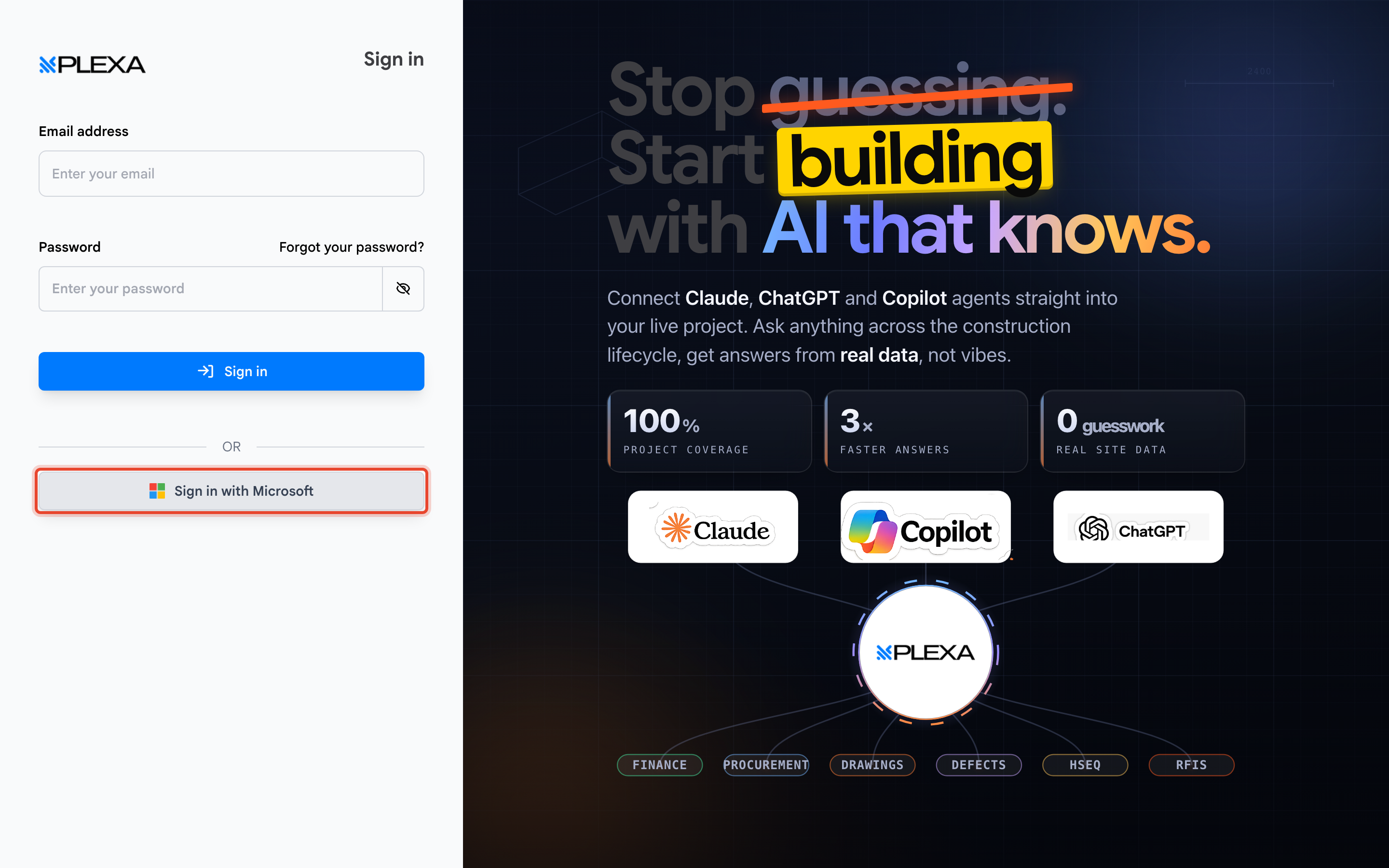
If your organisation uses two-factor authentication, Plexa asks for a code after your password. See Two-Factor Authentication.
Reset a Forgotten Password
Select "Forgot your password?" above the password field. Plexa emails you a reset link, and the link expires, so use it as soon as it arrives.

Notes & Recommendations
- Use private browsing on shared devices
- Security Reminder - Never share your sign in details. Plexa Admins can manage user access - Contact your Admin if you need updated permissions.
- If the reset email does not arrive, check your junk folder before contacting your Admin — invitations and resets are sent from an automated address
Need More Support?
For Individual requests related to using Plexa Tools, Contact PLEXA SUPPORT
Email: support@plexapro.com
Phone: 1300 117 140
We're here to help you get the most out of Plexa.